
Before
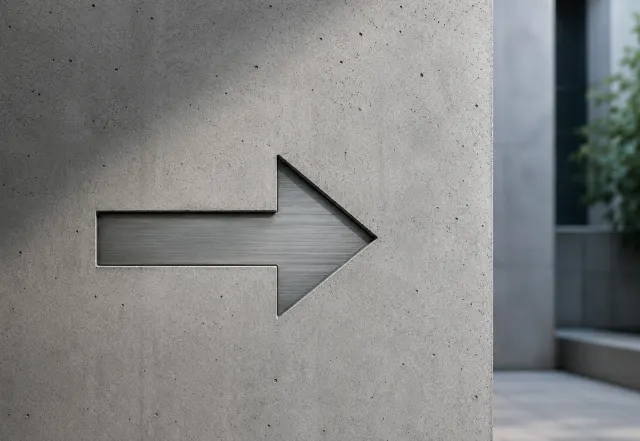
Original direction
Flip picture in your browser
Flip a picture online for free, horizontally or vertically, right in your browser. Upload your picture, check the preview, and save the flipped PNG.
Click, drag and drop, or paste where supported.
or drop it here. JPG, PNG, or WebP up to 20 MB.
Ready for a picture.
Downloads as PNG.
Sample flip picture preview. Upload yours to replace it.

 Before
After
Before
After
Drag across the sample to see the flip picture result. No upload yet

More flip picture examples
These sample pictures show the same horizontal flip FlipPic applies to your upload. Your own picture stays on this page, in your browser.
Original direction
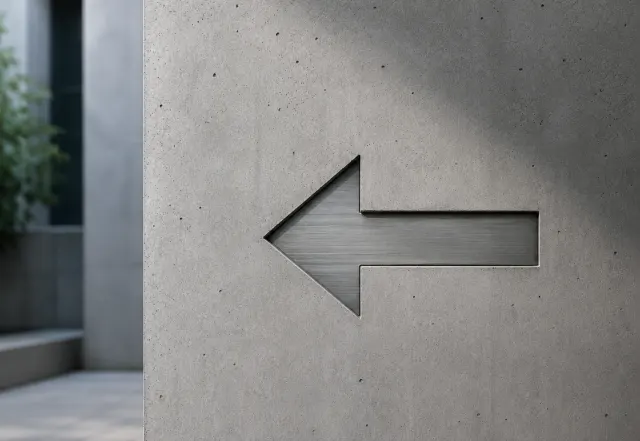
Mirrored direction
Turn the subject, horizon, or visual weight toward the side that works best for your layout.


Flip product images so handles, labels, or open space work better in a design.

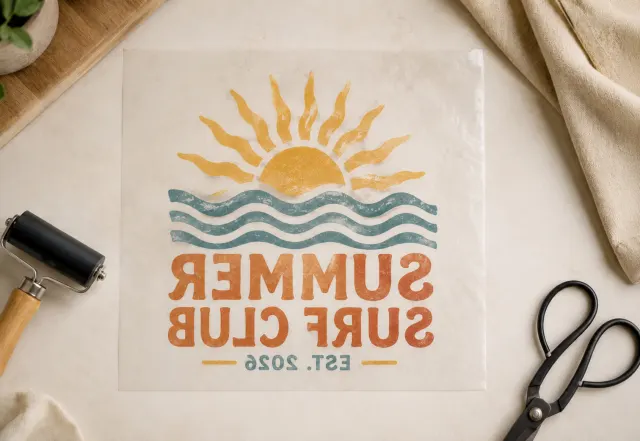
Create a mirrored version for transfer paper, craft layouts, or reference artwork.
FlipPic keeps online picture flipping simple: choose a picture, pick a direction, preview the change, and save the flipped result as a PNG.
Choose a JPG, PNG, or WebP photo from your device, drag it into the upload area, or paste an image where your browser supports paste. The original file is read locally so you can flip a picture without creating an account or waiting for an upload.
Flip horizontally for a mirror image, flip vertically for an upside-down reflection, or use both directions for a fully reversed picture. The preview updates right away, which makes it easy to compare the original picture with the flipped picture before downloading.
The result is created locally in your browser and downloaded without a watermark. FlipPic exports your flipped PNG so screenshots, transparent images, product photos, and simple graphics keep a clean output format.
Both actions reverse the picture or image, but they solve different jobs. Pick the option that matches the direction you need to correct or create.
| Horizontal flip | Mirrors the picture horizontally. Use it when a selfie looks backward, a product photo needs to face the other direction, or you need a mirror picture for a print transfer. This is the most common flip picture option. |
|---|---|
| Vertical flip | Turns the picture over from top to bottom. Use it when the image needs an upside-down reflection, a scan was saved in the wrong orientation, or a layout calls for a top-to-bottom reverse. |
| Flip both | Applies horizontal and vertical flipping together, which creates a 180-degree reversed result. It is useful when the picture needs to be turned and mirrored in one step. |
A quick flip can still change how a picture reads. Check the preview before you download, especially when the image includes text, arrows, labels, or faces.
After a horizontal flip, everything swaps left to right. That can make a portrait feel more natural in a profile layout, but it can also reverse readable text. If your picture has a logo, sign, product label, license plate, or document text, use the before-and-after preview to decide whether the mirrored version is actually the result you want.
Mirrored text may look wrong for a public post, store listing, or document. For craft transfers, however, reversed text can be exactly what you need before printing.
A horizontal flip picture edit can change where a person, pet, product, or arrow appears to be looking. Use it when the subject should face into the design instead of away from it.
Download a new flipped PNG and keep your original image untouched. That gives you both versions if you later need to compare, crop, or resize the picture.
Start with the highest quality picture available. Flipping does not fix blur or compression, but a clean original will produce a cleaner flipped picture.
A flipped picture is useful when the original direction does not fit the way you want to share, print, or place it. The same simple flip picture tool can help with social posts, product pages, craft files, scans, and design mockups.
Flip a front-camera photo so it appears the way other people see it. This is helpful when a selfie camera saved the mirrored view or when the composition feels better with the face turned the other way.
Create a reversed picture for transfer printing, T-shirts, stickers, iron-on paper, or craft projects. Many transfer workflows need a mirror image before the final print is pressed onto the surface.
Repair a scan, screenshot, or document image that was captured backward. A quick horizontal or vertical flip can save time when you only need to correct direction before sharing the file.
Turn people, products, arrows, or objects toward the most useful side of the layout. Designers often flip a picture so the subject points toward text, a call to action, or open space in the frame.
FlipPic uses your browser's canvas tools to process the picture on your device. That makes the workflow fast and private.
The file you choose stays on your device while the flip is created. The page does not send your image content, file name, or downloaded result to a server. Because the browser handles the work locally, you can preview the original picture and flipped picture immediately, then download only the result you choose.
Short answers for common flip picture questions, including file support, privacy, downloads, and the difference between flipping and mirroring.
You can flip a picture online for free by uploading your image, choosing horizontal, vertical, or both directions, then downloading the flipped PNG. The preview shows the original and flipped picture side by side so you can confirm the result before saving it.
Yes. Choose the horizontal flip option to create a left-to-right mirror image, then save the result. This is the option most people want when they search for a mirror image or a flip picture tool.
Yes. The core flip picture tool is free, requires no signup, and adds no watermark. You can upload a supported image, flip it, review the preview, and download the PNG without creating an account.
No. FlipPic processes images locally in your browser. Your picture content is not sent to a server, which makes the tool useful for quick personal edits, private photos, screenshots, and work images you do not want to upload.
Yes. The upload, preview, flip, and download workflow is designed for both mobile and desktop browsers. On mobile, choose a picture from your photo library or files, select the flip direction, and save the result.
A horizontal flip reverses the left and right sides of a picture. People often use "flip" and "mirror" for the same action, especially when they want to reverse a selfie, product photo, logo draft, or transfer design.
Yes. Transparent PNG and WebP images keep their transparent areas when downloaded as PNG. This is useful for icons, stickers, cutouts, product graphics, and other images that should stay transparent after the flip.
FlipPic accepts JPG, PNG, and WebP images, then exports the result as a PNG file. If you start with a JPG or WebP, the flipped picture download will still be a PNG file.